Furniture
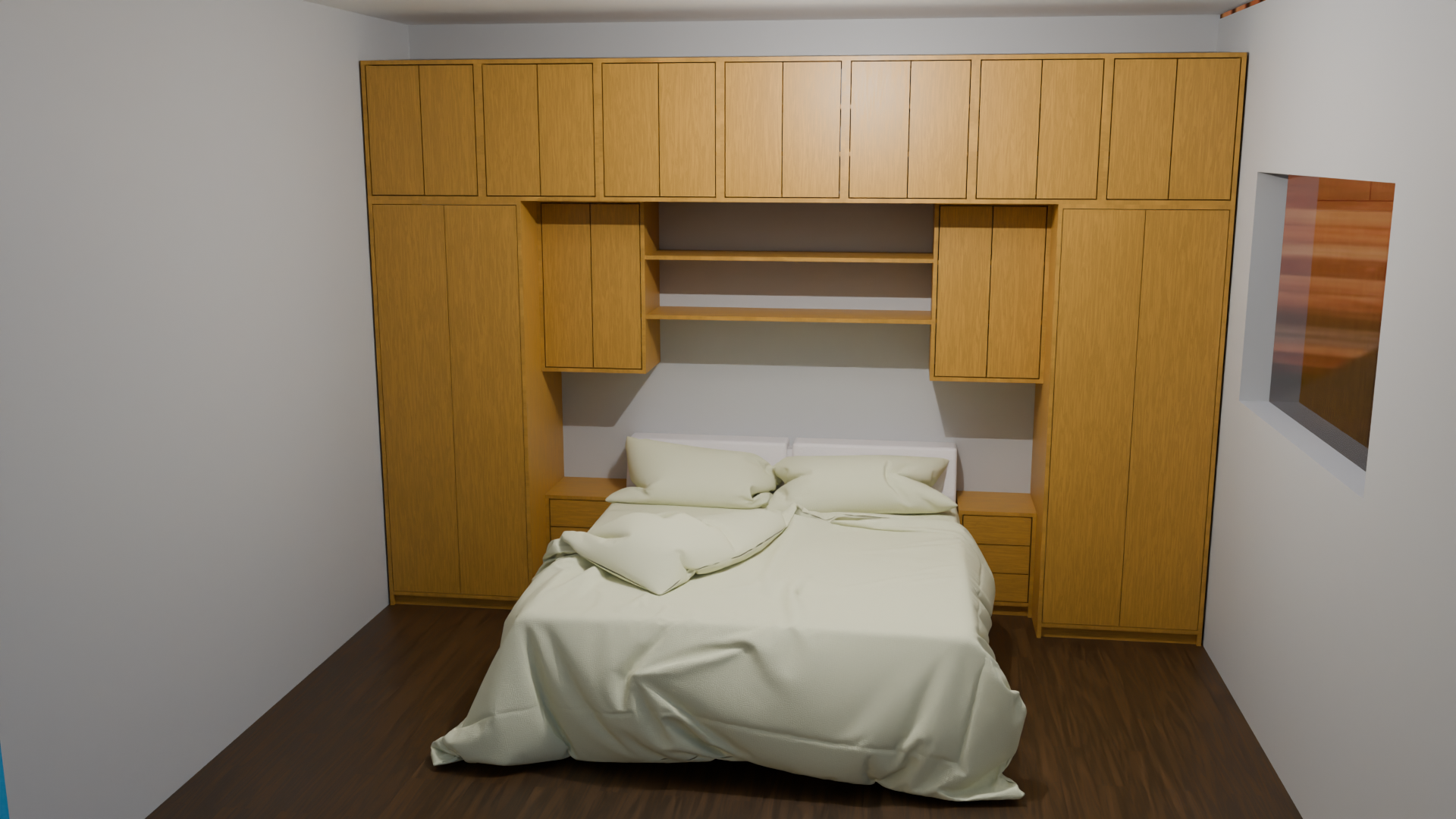
This demo builds furniture by arranging blocks, then placing boards on those blocks. A block describes a reference volume: its position, dimensions, and construction boundaries. Resources, named parameters, and block properties are stored in the geometry Bundle throughout the modifier stack.
Blocks is a list of Bundles. Each entry stores its Name, type, parent
reference, and dimensions. Its list index is its Block ID. Index zero is
reserved for an empty Root block (Type = -1), initialized when the list is
empty. Actual blocks start at index one, so a missing or zero-valued attribute
refers to Root. It is excluded from decoration and cut sheet output.
There is no separate ID field inside the block. New blocks are appended, and
entries are never removed or reordered. Name lookup is centralized in
.Block Index; references by ID read the list directly.
To create the node groups and modifiers:
from geonodes.demos import furniture

furniture.demo()
The module registers its builders in a Package("Furniture") with no prefix.
All Blender tree and material names are explicit and retain their original
capitalization and leading dots. demo() builds the package in declaration
order and displays its statistics.
To rebuild just one modifier:
from geonodes.demos.furniture import add_block

add_block.build(rebuild=True)
Decorated groups can also be imported and called inside another tree, for
example create_plank(width=0.4). Existing built-in utilities such as array
continue to be accessed through G().
Conventions
Coordinates use the furniture object's local reference frame:
| Axis | Dimension |
|---|---|
| X | Depth |
| Y | Width |
| Z | Height |
The origin (0, 0, 0) is the lower left corner of the cabinet, at the back.
The front faces increasing X, the right faces increasing Y, and the top faces
increasing Z.
Resources and global parameters
The first modifiers define the resources and names used to build the furniture.
Define Resource defines a board resource: its name, dimensions, thickness, Blender material, and color. Construction modifiers select their boards from these resources. Define Plinth specifies the plinth resource, height, and setbacks.
Resources is a list of Bundles, each with a Name, dimensions, thickness,
material, and color. A resource ID is its list index, starting at zero.
Define Resource appends a new name or updates an existing resource at the
same index. No Plank or Shelf entries are inserted automatically.
Resource selection fields use Default initially:
- With an empty list,
Defaultreturns the built-in board resource: 0.6 m wide, 2.5 m long, 18 mm thick, using the Furniture material and default wood color. - With a nonempty list, a resource named
Defaultis used when present. - Otherwise,
Defaultselects the resource at index zero.
An explicit name that cannot be found displays a warning and falls back to
Default using these rules. Get Resource also supports direct selection by
list index. Cut Sheet displays the actual resource names and indices, or
the built-in Default resource when the list is empty.
Capture Resources retrieves resources from another object. This lets you
centralize their definition in a reference object and share them across several
cabinets. To create a material or thickness variant, change the reference
resources without rebuilding the block layout.
The expanded Existing menu controls duplicate names: Keep (the default)
keeps the local resource, while Replace updates it at its current index.
New names are always appended, and local resources absent from the source are
preserved. Existing resource IDs therefore remain stable.
Define Named Dimensions defines named values used as global parameters: module width, cabinet height, clearance, and so on. Later modifiers can refer to these names instead of repeating numeric values.
Arranging blocks
Define Block creates an empty block. It adds no boards; enable Show Frame
to display its reference volume.
Position and dimension fields offer several value sources:
- Value: a value entered directly in
Offset. - Name: a named global parameter, with an optional offset.
- Block: a property of an existing block, with an optional offset.
A block reference can use its width, top, right edge, center, and other
properties. The boundary selection lets you work with reference, inner, or outer
dimensions. Dimension fields also offer Dimension and Target modes: enter
either a size or the coordinate to reach.
For example, to place a module to the right of another, reference the latter's
Right edge for the Y position. To align their tops, use its Top property as
the Z target. The referenced block must be defined earlier in the modifier stack.
Adding boards
Once a block is defined, the following modifiers select it by name:
| Modifier | Elements built |
|---|---|
| Add Box | Left and right sides, top, bottom, and plinth, depending on the options |
| Add Face | Doors or drawer fronts, depending on Type |
| Add Shelves | Horizontal shelves |
| Add Separators | Vertical dividers |
Add Block combines these steps: it creates the block and lets you build its carcass, shelves, dividers, and front directly. You can therefore start with an empty block or create a block already fitted with boards.
Interior decoration blocks
Add Shelves also creates ordinary blocks describing the free spaces between the boards: three shelves create four decoration blocks, and zero shelves create one block covering the entire interior. Shelf thickness is excluded from these volumes. A single shelf's custom height is respected.
Names follow <Parent> Deco <index>, numbered from bottom to top, starting at
zero. Each volume uses the common block structure, with matching reference,
inner, and outer bounds, and has:
- a unique
Block ID, equal to its stable index in the block list; Type = 1for decoration (construction blocks use0);- a
Parent Block IDlinking it to the cabinet block; - a
Deco Indexand aDecoration Mode(0: No,1: Items,2: Compositions).
The mode comes from Shelf Deco. These blocks are created even when decoration
is disabled and can be inspected with Debug Block or Get Block Properties.
Use Add Separators after Add Shelves to split each volume into columns,
excluding the separator thickness. Two shelves and two separators therefore
produce nine decoration blocks. Existing modes are preserved; if there are no
decoration volumes yet, the modifier starts from the full block interior and
uses its Separator Deco setting. With zero separators, existing volumes are
kept, or a single interior volume is created if none exist. Rebuilt volumes reuse
entries with the same name; extra volumes are appended. Unused entries are
disabled (Type = 2), without shifting any IDs. Names are numbered consecutively
by row, then from left to right.
Duplicating the parent creates renamed decoration blocks with new IDs and the
new parent reference. They follow translations and symmetries of the parent.
Furniture Decoration fills these decoration volumes directly, using their inner
location, dimensions, and decoration mode. Enable All to fill every decoration block, or disable it and enter the
decoration block indices in Block IDs, separated by spaces (for example,
3 7 12). Only decoration blocks are processed; their modes still select
Items or Compositions. Use Show Decoration IDs to identify the volumes.
Grain orientation affects the UV coordinates and the width/length order in the
cut sheet. It does not change the board geometry: Normal keeps the original
direction, while Rotate turns the grain by 90°. The material must use UV Map
to display this choice.
Dividing and duplicating
Divide Block creates sub-blocks using a vertical or horizontal division.
Count sets the number of parts. With Even enabled, their inner dimensions are
equal, accounting for the divider boards; otherwise, the Size fields specify
the successive dimensions. The Plank field selects the divider resource; leave
the name empty to skip building the dividers.
Duplicate Block creates a copy of a block. Enable Planks to copy its boards
as well. Copies can be placed:
- by translation, using
Offset YandOffset Z; - by symmetry along Y or Z, around the selected center;
- as an array, using
CountwhenSymmetryis set toNo.
In an array, each copy starts from the source block. The displacement is one offset for the first copy, two offsets for the second, and so on. The source block remains present. Symmetry mode creates a single copy.
Block names
Every block must have a unique name, including blocks created by division or duplication.
- Division combines the parent block name,
Name Suffix, and an index starting at zero: for example,Module Part 0,Module Part 1. - Duplication uses
New Name. - Array duplication appends an index: with
New Name = Module, copies are namedModule 0,Module 1, and so on.
The Cut Sheet modifier displays block names in a column to the right of the resource list. Use this list to find the names to enter in later modifiers.
Decorating blocks
Each block has three decoration menus: Bottom Deco, Shelf Deco, and
Top Deco. Set Bottom Deco and Top Deco next to their sides in Add Box,
and Shelf Deco in the Add Shelves panel. These controls are also exposed
through Add Block. Empty blocks do not prompt for decoration settings.
Use Define Decoration to change an existing block, including a duplicate.
Each menu offers:
- No: leave the supports empty (the default).
- Items: choose individual objects randomly and pack them along the support. Objects are placed on its top surface, with random depth positions that stay within its bounds.
- Compositions: choose one predefined composition per support. A horizontal reference rectangle, when present, defines its left/right and back margins; the rectangle is removed and the composition is placed on the support's top. Without a reference rectangle, placement is randomized around the center. Each successfully placed composition is removed from the available choices, so it is used at most once per Furniture Decoration modifier. Once the collection is exhausted, subsequent composition supports remain empty.
Composition selection checks width and height against the block's inner size. Compositions that still exceed either limit after the random search are not placed or removed from the collection.
Shelf Deco applies to shelves and horizontal dividers created by Divide Block.
In Divide Block, Separator Deco selects No, Items, or Compositions
for horizontal divider boards (vertical division of the block). It sets the
sub-blocks' Shelf Deco mode; vertical divider boards are not decorated.
Duplicated blocks retain their settings, and divided blocks inherit the other
decoration settings.
On a separate object, add Furniture Decoration and select the furniture through
its Object or Geometry source. Choose the Items and Compositions
collections; each child object represents one item or one complete composition.
Enable Show IDs to display the IDs of all decoration blocks instead of the
decorations, independently of the All / Block IDs selection. Font Size
controls the label size.
Max per Shelf controls the number of items; compositions always use one object.
Min Distance and Distance set the minimum and maximum random spacing between
items. If the maximum is below the minimum, the minimum is used. No gap is added
before the first item. Seed controls the random layout.
Delete Items (enabled by default) removes successfully placed items from the
available instance pool, preventing repeats across supports. Disable it to allow
items to be reused. This never changes the source Blender collection.
The output contains only decoration instances.
The utility group .Extract Items, defined after .Extract Composition,
takes Geometry and Block ID and reads the block's Inner Location and
Inner Size directly. Its other inputs are Instances, Max Items,
Min Distance, Distance, Delete Items, and Seed.
.Extract Composition uses the same Geometry / Block ID inputs, along with
Instances and Seed. Either utility can fill a construction or decoration
block. Both place the geometry on the bottom of the inner volume; there are no
separate location, size, or available-height inputs.
It returns the remaining Instances and the placed Mesh. Items must fit
all three dimensions; placement stops at the first item that does not fit, or
when the pool is empty. Only successfully placed items are removed when
Delete Items is enabled; otherwise, the input pool is returned unchanged.
Decorations retain a Support Block ID reference to their decoration volume
and an Is Decoration marker.
Animating doors and drawers
Open Door simulates opening a door using an angle, axis, and pivot side. Open Drawer moves a drawer front and adds a simplified drawer box to visualize the opening.
Selection uses the block, role, and index. These modifiers can prepare a still view or animate opening parameters in Blender. The drawer box is a simplified visual representation; its panels are not added to the cut sheet.
Dimensions and derived views
Add Cotes displays a block's dimensions and, optionally, its positions along X, Y, and Z. Its options control text size, line thickness, and dimension placement.
Delete Plank removes boards from the displayed geometry to make dimensions easier to read: for example, remove doors to show the cabinet interior. Construction metadata and cut sheet entries are preserved.
Add External Block lets you prepare these views on a separate object using
a reference cabinet. The Source selector retrieves either an object with
Object or connected geometry through Source Geometry with Geometry.
Source Block names the reference block in the incoming furniture. Its reference
location is aligned to the requested Location, whose X/Y/Z panels accept a
value, named parameter, or reference to an existing destination block.
The module keeps its original dimensions: there is no scale or target-size input.
Both its geometry and all its block locations receive the same translation.
The incoming furniture is joined to the modifier's input geometry. On an empty
object, this creates a derived view or the starting point for a new cabinet;
on an existing cabinet, it adds an external module.
Resources are merged by name using the expanded Existing menu (Keep or
Replace), just as in Capture Resources. Imported board resource references,
cut sheet entries, and the plinth resource reference are converted to the merged
resource indices. Implicit default resources are materialized when needed to
preserve their references. Imported boards use the material and color of the
resolved destination resource, so Keep applies the current cabinet materials.
Imported blocks are appended without their Root. Positive block references
are shifted by the destination block count minus one; zero references remain
zero. Board IDs are also offset to avoid collisions. Block names are preserved
and must remain unique across the captured furniture and the destination.
Incoming named parameters override matching local names while unrelated local
parameters are kept. The merged geometry and Bundle pass to subsequent modifiers.
For example, a presentation stack can be:
Add External Block
→ Delete Plank
→ Add Cotes
Another view can use Add External Block followed by Open Door or Open Drawer.
These objects follow the reference cabinet while keeping their own presentation
settings.
Generating the cut sheet
- Build the furniture and define its board resources.
- Create a separate object for the cut sheet and add the Cut Sheet modifier.
- In the
Furniturefield, select the reference furniture object. - The resulting geometry displays resource IDs and names, with block names on the right. It also contains the cut data as a point cloud.
- In Blender's Python console, call
get_cut_sheetwith the name of the object carrying the Cut Sheet modifier:
from geonodes.demos import furniture

print(furniture.get_cut_sheet("Furniture Cuts"))
Replace Furniture Cuts with that object's name. The result groups pieces with
the same resource, dimensions, and orientation, adding their quantities.
Dimensions are expressed in millimeters. The text displays each resource ID,
followed by lines formatted as length x width (orientation) : quantity.
To retrieve the data as JSON:
cuts_json = furniture.get_cut_sheet("Furniture Cuts", json=True)
print(cuts_json)
Each entry contains res_id, count, size, and orient. The size field
contains width, length, and thickness in millimeters; orient is 0 for Normal
and 1 for Rotate. Cut sheet width and length are already swapped when the
grain is rotated.